WHY IS HAPPYMOD NOT WORKING? COMMON FIXES
HappyMod is a popular platform that allows Android users to discover different versions of apps and games. However, like any application, it may sometimes stop working as expected. Some users experience download failures, while others face installation errors, app crashes, or loading issues.
If HappyMod is not working on your device, there is usually a simple explanation behind the problem. In most cases, the issue is related to internet connectivity, device compatibility, outdated app versions, or incorrect Android settings.
This guide explains the most common reasons why HappyMod may not work and the practical steps you can take to fix the problem.
Common Reasons Why HappyMod Is Not Working
Several factors can prevent HappyMod from functioning properly. Identifying the exact cause is the first step toward resolving the issue.
Some of the most common reasons include:
- Poor internet connection
- Outdated HappyMod version
- Insufficient storage space
- Android compatibility issues
- Corrupted app cache
- Installation permission restrictions
- Temporary server-related problems
Understanding these causes can help you choose the right solution instead of trying random fixes.
Check Your Internet Connection
A stable internet connection is essential for HappyMod to work correctly. If your network is slow or unstable, the app may fail to load content or download files.
Start by switching between Wi-Fi and mobile data. You can also test your connection by opening a website or streaming a video.
If your internet connection is working normally but HappyMod still does not load, move on to the next troubleshooting step.
Update HappyMod to the Latest Version
Using an outdated version of HappyMod can create compatibility problems. New Android updates may affect how older versions of the application perform.
Check whether a newer version of HappyMod is available. Installing the latest version often resolves bugs, improves performance, and fixes loading issues.
Before updating, make sure you download the correct version that is compatible with your Android device.
Clear App Cache and Temporary Data
Over time, apps collect cached data to improve performance. However, damaged or outdated cache files can sometimes cause errors.
Steps to Clear the HappyMod Cache
- Open your Android Settings.
- Go to Apps or Application Manager.
- Select HappyMod.
- Tap Storage.
- Choose Clear Cache.
After clearing the cache, restart the app and check whether the issue has been resolved.
Verify Available Storage Space
HappyMod requires sufficient storage space for downloads and installations. If your device is running low on storage, downloads may stop unexpectedly or fail completely.
Check your available storage and remove unnecessary files if needed.
You can free up space by:
- Deleting unused applications
- Removing duplicate photos
- Clearing temporary files
- Moving media files to cloud storage
Maintaining adequate storage can improve overall app performance.
Enable Installation Permissions
Android devices often block installations from unknown sources by default. If this setting is disabled, HappyMod may not be able to install downloaded APK files.
How to Enable Installation Permissions
- Open Android Settings.
- Navigate to Security or Privacy.
- Locate Install Unknown Apps.
- Allow permission for the browser or file manager you are using.
- Open Android Settings.
- Navigate to Security or Privacy.
- Locate Install Unknown Apps.
Once enabled, try the installation process again.
Restart Your Android Device
A simple restart can often solve temporary software issues. Background processes, memory conflicts, and minor system glitches may prevent HappyMod from functioning correctly.
Restart your device completely and launch the application again. This quick step can often resolve unexpected performance problems.
Check Android Compatibility
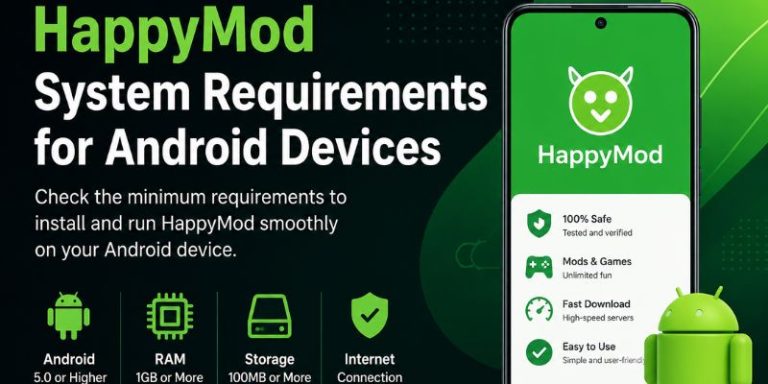
Not all applications work equally well on every Android version. Older devices may experience compatibility issues with newer releases of HappyMod.
Check the Android version installed on your smartphone or tablet. If your device is running an outdated operating system, updating Android may improve compatibility and performance.
Users with older devices may need to install earlier versions that are compatible with their Android system. In such cases, newer updates may not work properly. Therefore, selecting the right version becomes essential.
Reinstall the Application
If HappyMod continues to crash or fail to open, reinstalling the application may help.
First, uninstall the current version completely and remove any leftover files if possible. After that, install a fresh copy of the application. This helps resolve most installation issues.
A clean installation can fix corrupted files that may have developed during previous updates or downloads.
Disable VPN Services Temporarily
In some situations, VPN services may interfere with downloads or app connections. While VPNs are useful for privacy and security, they can occasionally create connection conflicts.
Temporarily disable your VPN and check whether HappyMod begins working normally.
If the issue disappears, try switching to another server location or VPN provider.
Check for Server Issues
Sometimes the problem is not on your device. Like many online platforms, HappyMod may occasionally experience temporary server maintenance or service interruptions.
If the app suddenly stops loading despite a stable internet connection, server-side issues could be responsible.
In such situations, waiting for some time and trying again later is often the best solution.
Fix Download Failures
Download failures are among the most common problems reported by users.
If downloads repeatedly stop or fail, try the following:
- Check your internet connection.
- Ensure sufficient storage space.
- Restart the application.
- Clear the app cache.
- Update HappyMod to the latest version.
Combining these steps resolves most download-related issues.If you’re specifically facing a “Download Failed” error, there are additional steps you can try to resolve the issue. For a detailed guide, check out HappyMod Download Failed Error Fix, which covers common causes and practical fixes.
Resolve Installation Errors
Installation errors may occur if Android security settings block APK files. Alternatively, they can happen when downloaded files are corrupted. As a result, the installation process may fail.
Ways to Fix Installation Problems
- Enable installation permissions.
- Delete incomplete download files.
- Download the file again.
- Restart your device before reinstalling.
These actions often eliminate installation-related errors.
Prevent Future Problems
Keeping your device optimized can reduce the chances of future HappyMod issues.
Consider the following maintenance practices:
- Update Android regularly.
- Install app updates when available.
- Maintain adequate free storage.
- Remove unused applications.
- Clear cached data periodically.
These simple habits can improve both app stability and overall device performance.
Final Thoughts
If HappyMod is not working, the issue is usually linked to connectivity problems, outdated software, storage limitations, or Android settings. Fortunately, most of these problems can be resolved with a few straightforward troubleshooting steps.
By checking your internet connection, updating the application, clearing cache files, and verifying installation permissions, you can solve many common HappyMod issues without advanced technical knowledge.
Regular device maintenance and software updates can also help prevent similar problems in the future, ensuring a smoother experience when using Android applications and downloads.